 Candelina
Birthday Reminders on iPhone: Setup Guide
By Candelina · Updated
Your iPhone can remind you about birthdays without another app. Save the date in Contacts, show the Birthdays calendar, and choose when Calendar should alert you.
1. Save the date in the contact card
Open Contacts, select the person and tap Edit. Find the birthday field, add the date and save the card. Put the date in the birthday field rather than only in a note: Calendar needs a birthday it can recognise.
If your address book lives in Google, start with our guide to bringing Google Contacts birthdays to iPhone. You do not need to type every date again.
2. Show the Birthdays calendar
Open Calendar, tap Calendars and select Birthdays. Return to the calendar and check a date you know. Apple’s calendar guide explains that this calendar displays birthdays from Contacts.
This is a useful checkpoint: if the date is not visible yet, fix the contact or account first. Changing notification settings will not add a missing birthday.
3. Choose an alert and allow notifications
- Open Settings → Apps → Calendar.
- Open Default Alert Times → Birthdays.
- Select the available timing that suits you instead of None.
- In Settings → Notifications → Calendar, allow notifications and choose where you want them to appear.
These are separate settings: the birthday alert determines when Calendar reminds you; notification settings determine how you see or hear it. Menu labels can vary with your iOS version and language. See Apple’s instructions for default alert times and Calendar notifications.
If a birthday or alert is missing
- No birthday on the calendar: check the person’s birthday field, the account containing that contact, and whether Birthdays is selected in Calendar.
- The birthday appears, but no alert arrives: check the birthday alert time and Calendar notification permissions. Also review any Focus settings that may silence Calendar.
- The same birthday appears twice: look for duplicate contact cards or a separate birthday event you created manually. Apple describes this in its duplicate calendar events guide.
For someone who needs a gift ordered early, plan that task separately from the birthday itself. A same-day notification may be enough for a message, but it cannot give you back delivery time.
When a dedicated birthday app helps
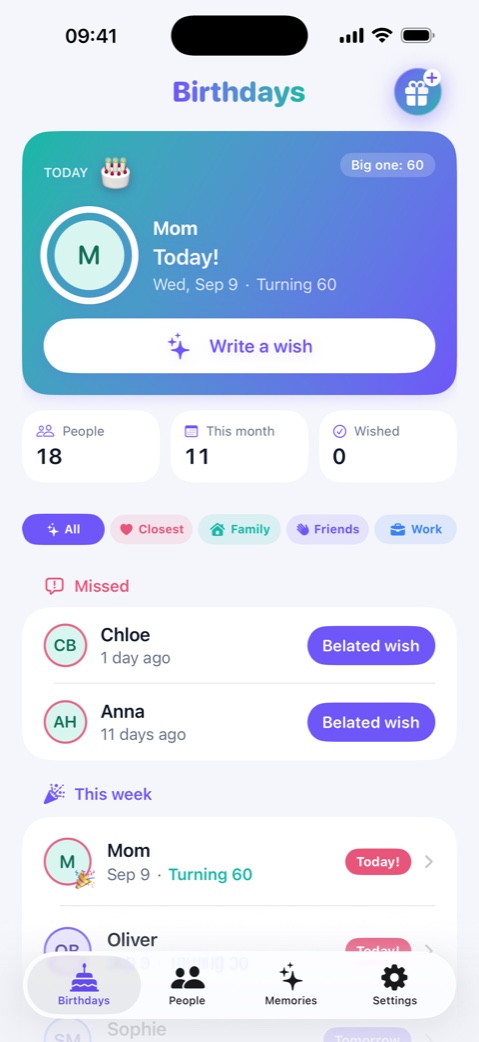
The built-in setup is a sensible starting point if your dates are already in Contacts and you want a standard alert. Candelina brings a birthday list, scheduled reminders and help writing the message into one place.
Its free reminders cover the evening before and the birthday itself. Unlimited adds earlier reminders, including two weeks, one week and three days ahead, plus widgets and custom reminder times. Check what is free and what is paid before choosing.
Sources
Related guides
Google Contacts Birthdays on iPhone: Sync & Import
Sync Google Contacts birthdays to your iPhone or export a CSV for Candelina. Understand the difference between syncing and importing a file.
Birthday Widgets for Your iPhone Screens
Put upcoming birthdays on your iPhone Home Screen or Lock Screen with Candelina widgets. Choose a layout and check the displayed person.
Plan Birthday Gifts with Early Reminders
Prepare before a birthday with early alerts, gift notes and a weekly digest in Candelina. Match the reminder to the time your plan actually needs.