 Candelina
Birthday Widgets for Your iPhone Screens
By Candelina · Updated
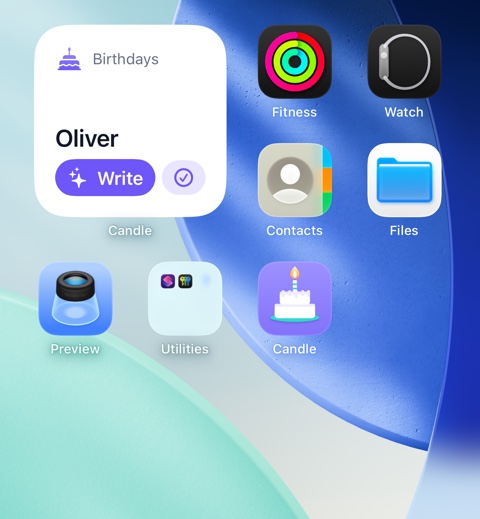
Put upcoming birthdays on your iPhone Home Screen or Lock Screen with Candelina widgets. Choose a layout and check the displayed person.
Step by step
- Open Candelina and add or import birthdays first. Widgets are part of Unlimited, so check that your purchase is active.
- On the Home Screen, hold an empty area, open Edit → Add Widget, find Candelina and choose an available layout.
- For the Lock Screen, hold the screen, choose Customize, select the Lock Screen and use Add Widgets to find Candelina.
- Finish editing and check the result. Tap the person to open their card; where available, the writing action opens the greeting composer.
What to know
Candelina includes Home Screen and Lock Screen layouts. iOS controls widget updates, so a widget is not a replacement for scheduled notifications. If it looks stale, open the app and check your birthday list and subscription first.
A practical example
Use a larger Home Screen widget when you want more context, or a compact Lock Screen widget for a quick glance. If the widget picker has no room, remove another widget or choose a smaller layout.
Sources
Related guides
Birthday Reminders on iPhone: Setup Guide
Set up birthday reminders in iPhone Contacts and Calendar, choose alert times, and check why a birthday or notification is missing.
Plan Birthday Gifts with Early Reminders
Prepare before a birthday with early alerts, gift notes and a weekly digest in Candelina. Match the reminder to the time your plan actually needs.
Make a Birthday Card on iPhone
Turn a birthday greeting into a card in Candelina. Preview the text, then share the card as an image or save it to Photos.