 Candelina
Google Contacts Birthdays on iPhone: Sync & Import
By Candelina · Updated
If birthdays are saved in Google Contacts, start by syncing that account to your iPhone. Export a file instead when you want a separate snapshot to import into a birthday app.
- Keep using Google Contacts: sync the account with iPhone Contacts.
- Use a file in Candelina: export Google CSV, then review the birthdays before adding them.
Sync keeps contacts connected to Google. A file import is a snapshot and does not keep later changes in sync.
First, check where the dates are saved
Open Google Contacts and inspect a few people whose birthdays you know. The date should be saved on the contact, not only mentioned in a note or a separate calendar event. Google explains how to save and edit significant dates.
Neither syncing nor exporting can recover a birthday that is absent from the source contact. Start with two or three known dates so you can check the result before relying on the whole list.
Option 1: Sync Google Contacts to your iPhone
- On iPhone, open Settings → Apps → Contacts → Contacts Accounts.
- If your Google account is already listed, open it and turn on Contacts. Otherwise choose Add Account → Google, sign in, and enable Contacts.
- Open the Contacts app. Check the relevant account’s list and find one of the people you checked in Google Contacts.
- Confirm that their birthday appears on the iPhone contact card.
Apple documents the current Contacts account settings; Google explains how contact syncing works. Older iOS versions may show Contacts directly in Settings rather than under Apps.
Next, open Calendar → Calendars and select Birthdays. Showing the date does not complete notification setup: follow our birthday reminder instructions to choose an alert time and allow Calendar notifications.
Option 2: Export Google CSV for Candelina
For a file-based import, use Google Contacts on a computer:
- Select the contacts you want to export. To include everyone, use the selection menu and choose All.
- Open More actions → Export.
- Choose Google CSV and save the exported file.
- Transfer the file to a location you can open in Files on your iPhone.
Google’s export instructions cover the selection and download steps. Keep the original export as a backup; you do not need to delete your Google contacts.
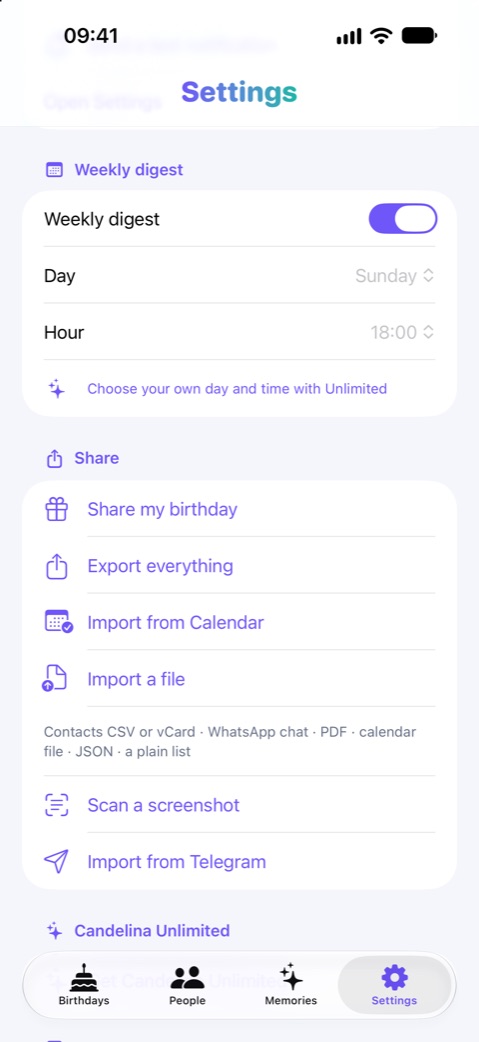
In Candelina, choose Import a file, select the CSV, and review the birthdays found before adding them. File imports are part of Unlimited; importing from iPhone Contacts is free. See the feature comparison.
Candelina reads the file on your phone. Its importer recognises Google-style dates such as 1990-05-12 and --05-12 when the year is unknown. A row needs a name and a valid birthday to appear in the results.
If the import finds fewer birthdays than contacts
- Contacts without dates: an address book with 200 people does not necessarily contain 200 birthdays.
- Wrong account or selection: confirm that you exported the people you intended.
- Edited CSV: try the original Google export before a version resaved by a spreadsheet editor. Check that the Birthday column still contains dates.
- Later changes: editing Google Contacts after exporting will not update that file or a previous Candelina import automatically.
For an address book you maintain in Google, start with account sync. Choose file import when you specifically want to bring a selected set of birthday dates into Candelina.
Sources
Related guides
Birthday Reminders on iPhone: Setup Guide
Set up birthday reminders in iPhone Contacts and Calendar, choose alert times, and check why a birthday or notification is missing.
Import Birthdays from Files and Screenshots
Bring birthdays from a CSV, vCard, PDF or screenshot into Candelina. Review recognised names and dates before adding them to your list.
Collect Friends’ Birthdays with One Link
Collect birthdays through a shared link instead of asking each friend separately. Bring the replies into your Candelina birthday list.