 Candelina
Import Birthdays from Files and Screenshots
By Candelina · Updated
Bring birthdays from a CSV, vCard, PDF or screenshot into Candelina. Review recognised names and dates before adding them to your list.
Step by step
- Choose a source containing a clear name and birthday for each person. For a screenshot, keep names and dates visible and text large enough to read.
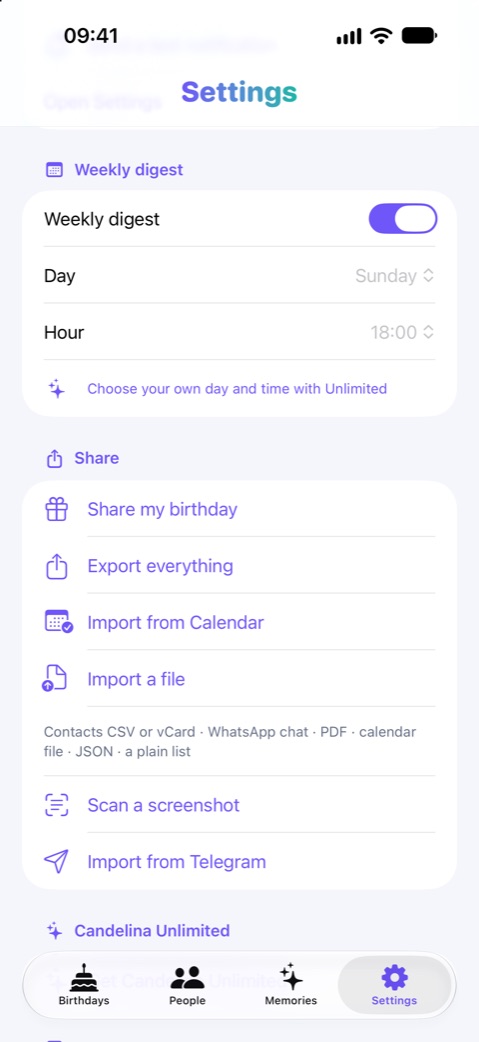
- In Candelina choose Import a file for a document, or Scan a screenshot for an image. Select the original file or screenshot.
- Review the recognised entries. Deselect anything you do not want to add and check ambiguous dates against the source.
- Add the selected birthdays. Open the resulting person cards to verify dates and fill in any missing information.
What to know
Files and images are processed on the phone. Recognising the contents does not guarantee every date is correct. Adding the results requires Unlimited; importing from iPhone Contacts is free.
A practical example
If nothing is found, use a clearer image or the original CSV/vCard instead of a photo. A line such as “Anna — 12 May” is clearer than an isolated number with no name. Do not invent a birth year when the source only gives day and month.
Related guides
Google Contacts Birthdays on iPhone: Sync & Import
Sync Google Contacts birthdays to your iPhone or export a CSV for Candelina. Understand the difference between syncing and importing a file.
Import Birthdays from Telegram to iPhone
Use Candelina to read birthdays visible in your Telegram contacts’ profiles. See what the import can find and why some dates may be missing.
Collect Friends’ Birthdays with One Link
Collect birthdays through a shared link instead of asking each friend separately. Bring the replies into your Candelina birthday list.